Your saved Universal Import Templates can viewed and managed from your interface settings. Follow these steps to view, delete, or copy a template to another customer.
Viewing Universal Import Templates
- Select Interface > Settings.
-
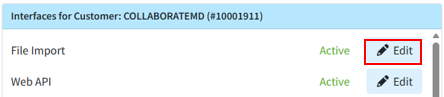
Find the File Import interface and click Edit.
-
Click the View Universal Import Templates button.
Deleting a Universal Import Template
-
Find the template you want to delete from your list.
-
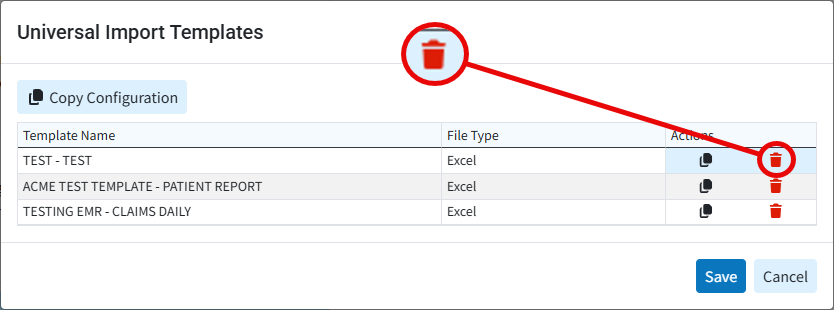
Click the red trash can icon to the right of the template name (under the "Actions" column).
-
Click Save.
Copy Your Universal Import Template Configuration
-
Find the template you want to copy from your list.
-
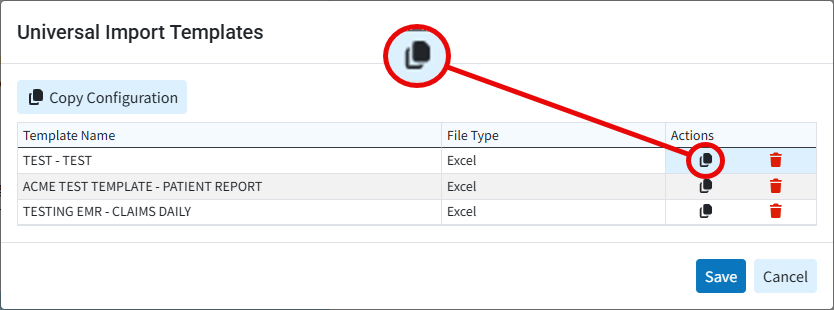
Click the black copy icon to the right of the template name (under the "Actions" column).
-
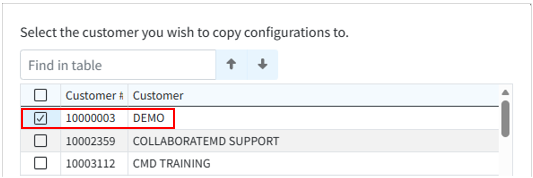
Select the customer(s) you wish to copy the configuration to by checking the box(es).
-
Click Copy.
-
Click Save.
 Need to copy all your templates? You can copy all your Universal Import Templates simultaneously instead of individually by selecting the "Copy Configuration" button and choosing the customer(s) to copy the configurations to.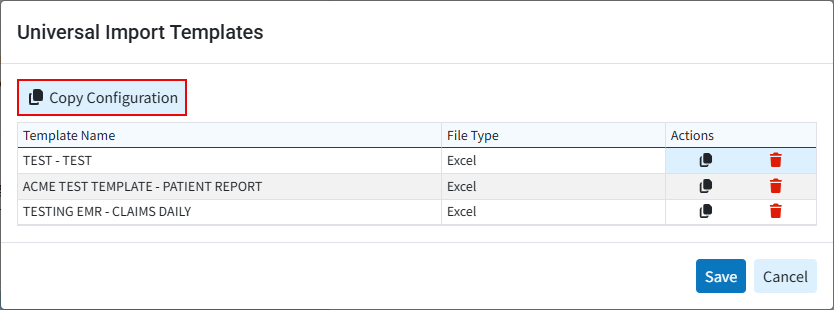
 Need to copy all your templates? You can copy all your Universal Import Templates simultaneously instead of individually by selecting the "Copy Configuration" button and choosing the customer(s) to copy the configurations to.